Stop planning.
Start doing.
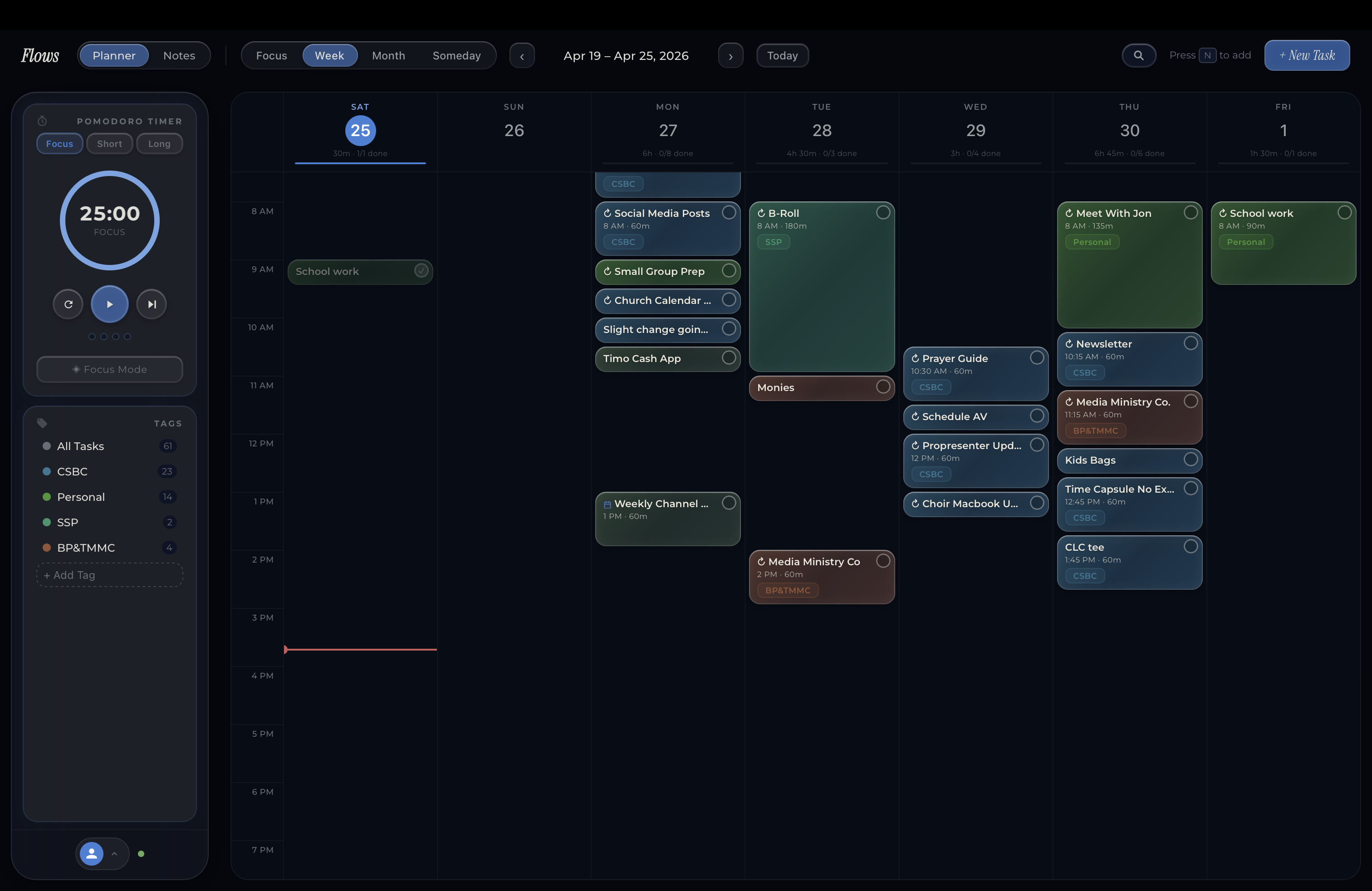
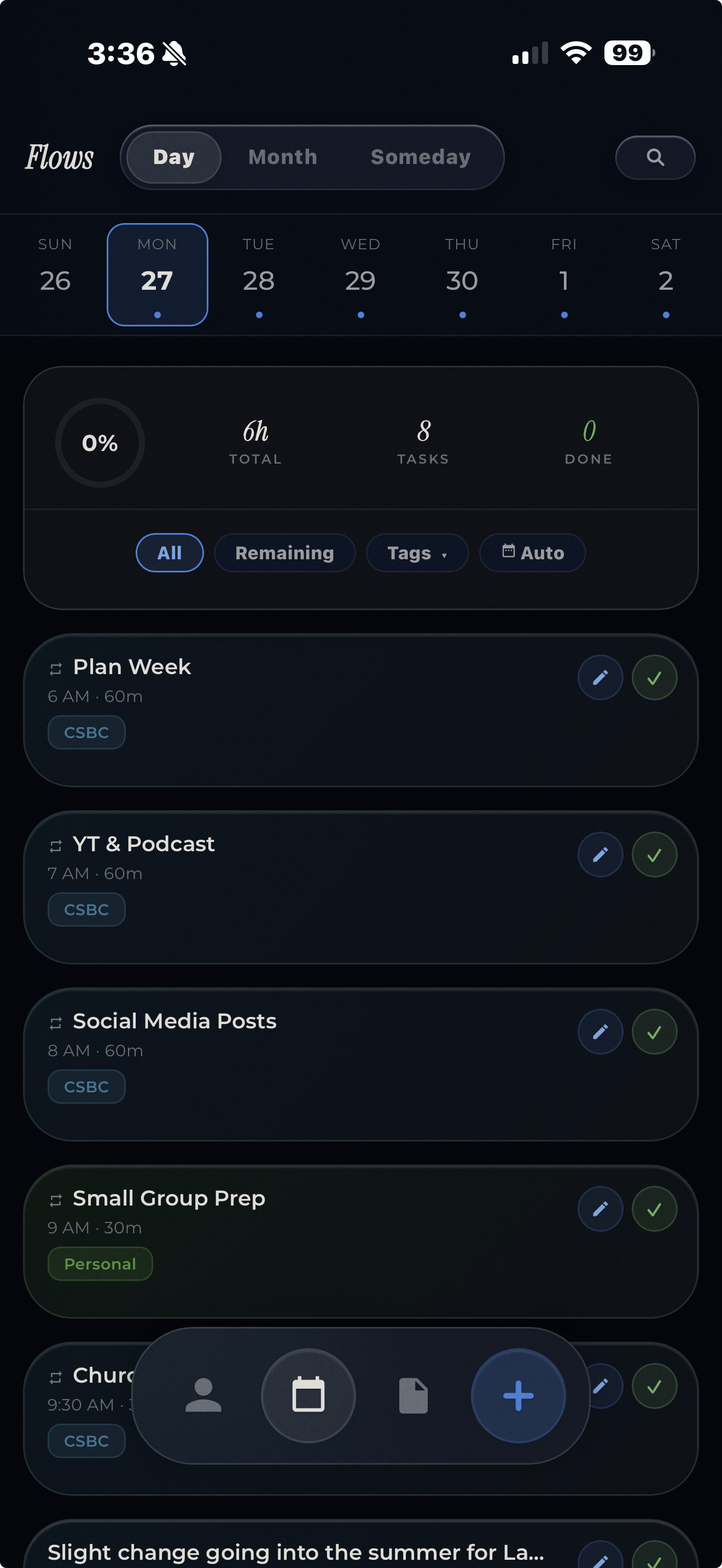
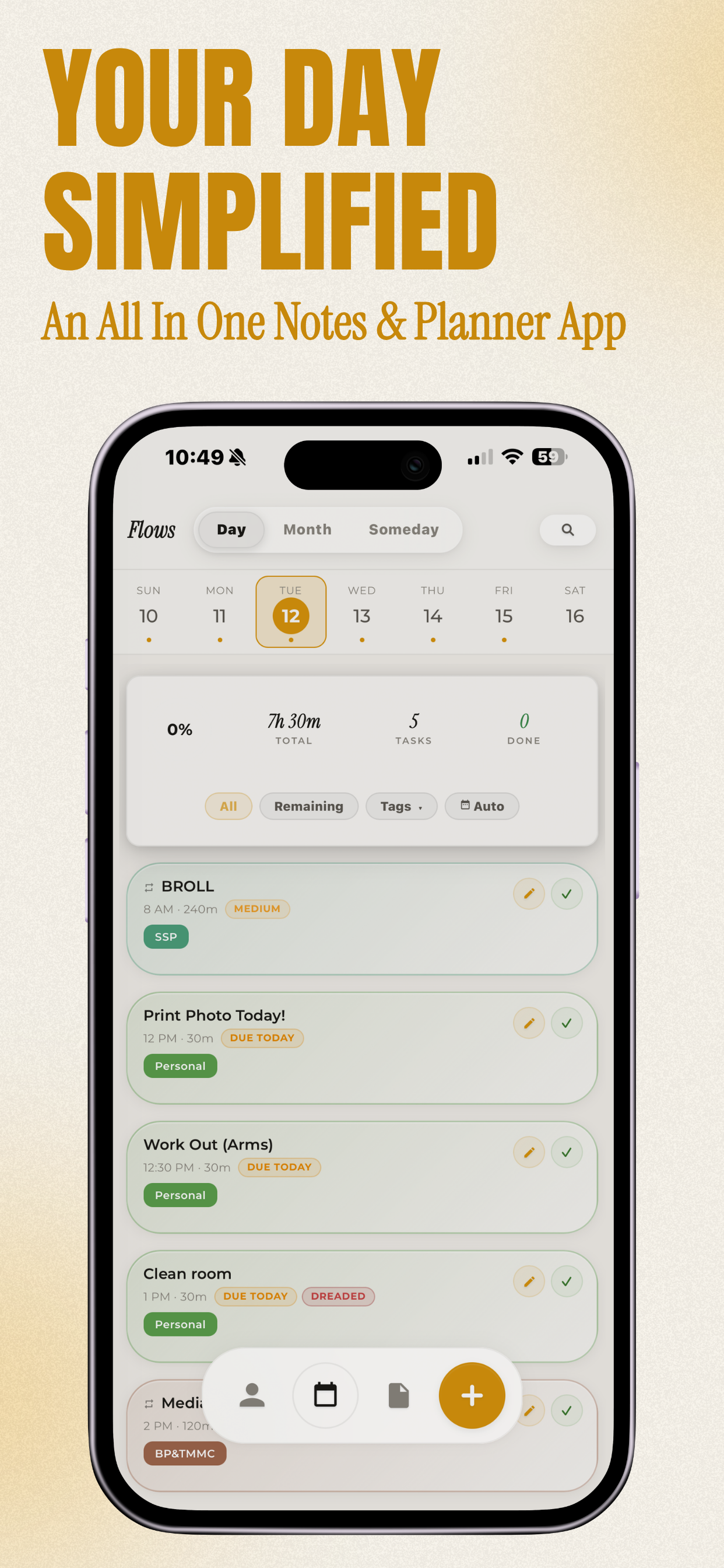
Flows simplifies your day into one clear plan. One tap schedules everything around your energy. A built-in timer keeps you focused. Notes capture ideas before they slip away. No switching apps. No decision fatigue.
Free to start. Pro trial included — no credit card needed.
Less chaos. More clarity.
Every feature exists to solve a real problem — not to pad a feature list.
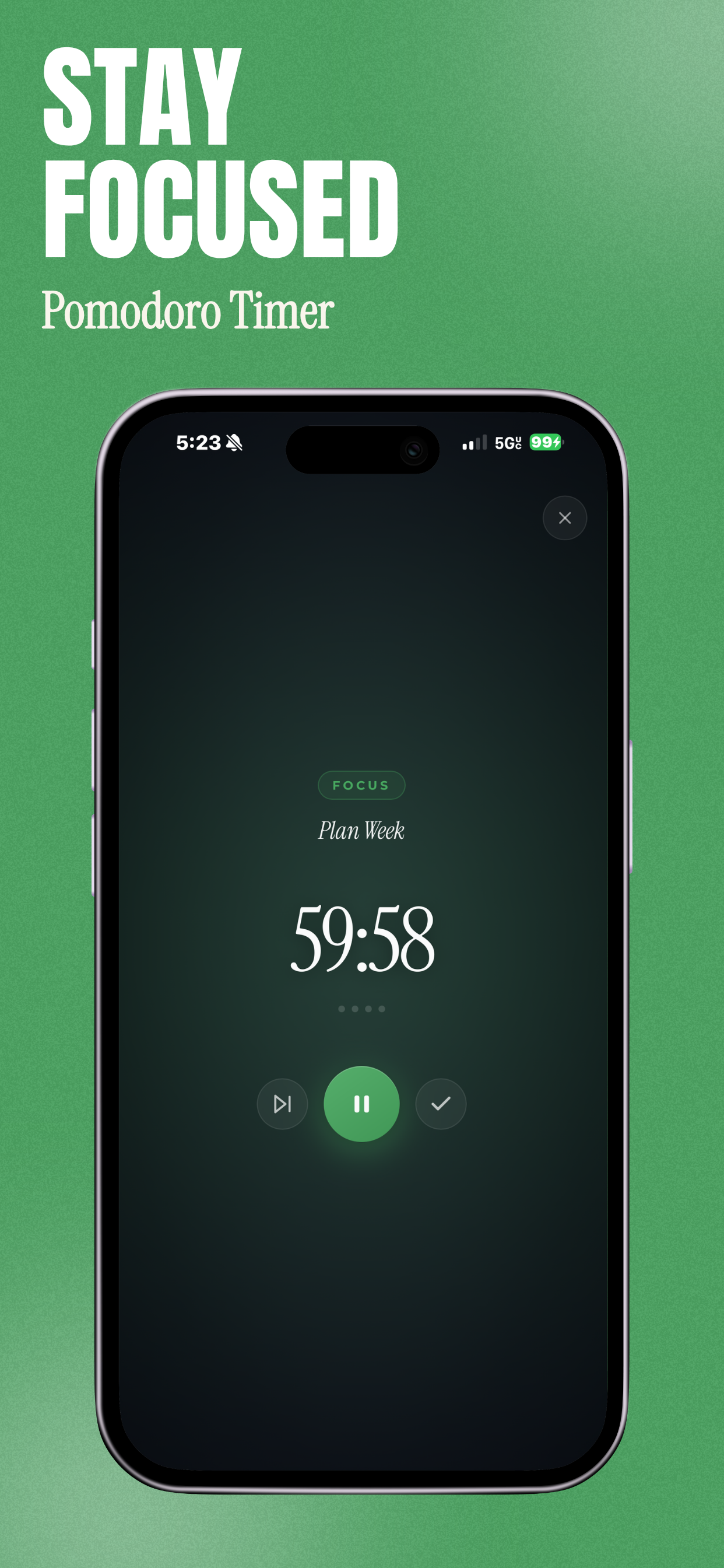
Stay focused, not drained
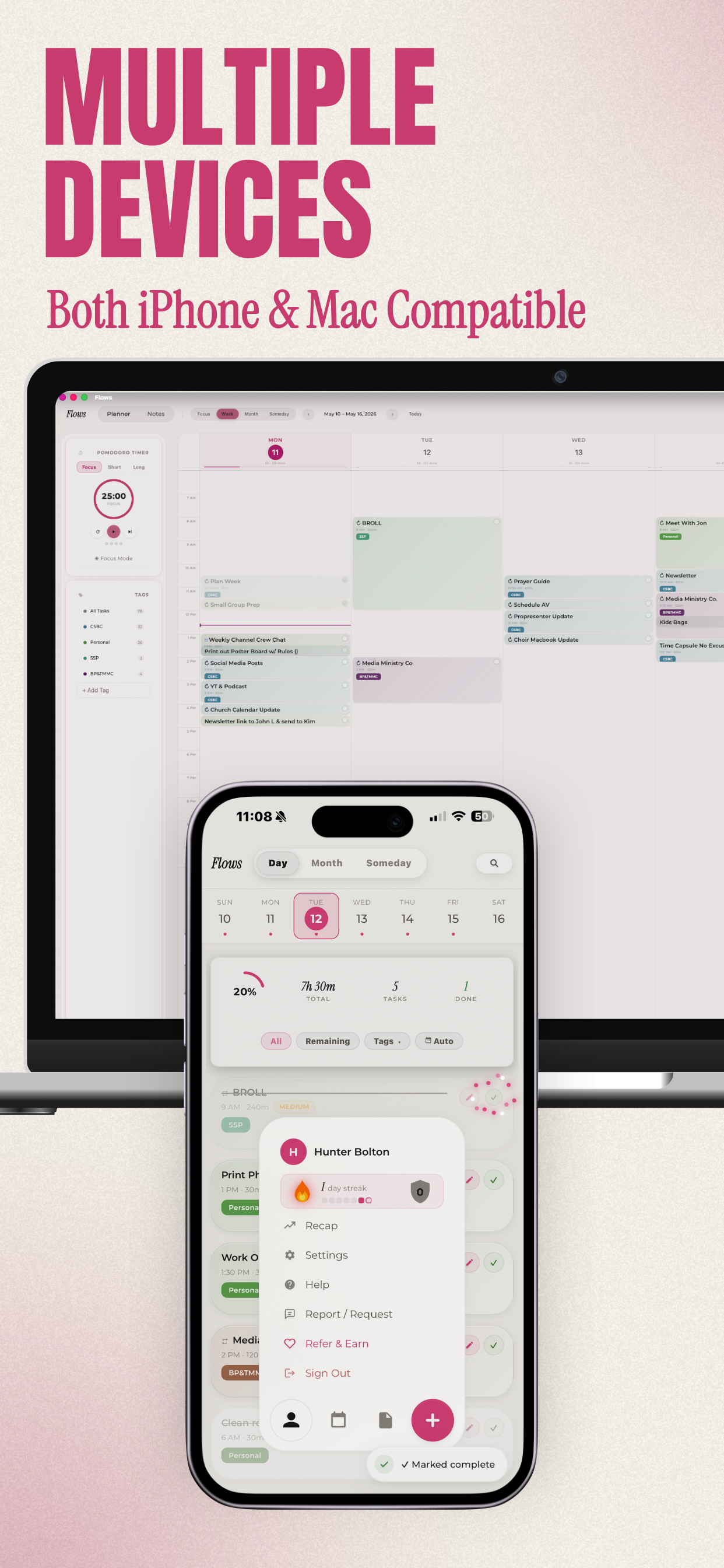
A built-in Pomodoro timer with ambient sounds, four completion tones, haptic feedback, and optional auto-start keeps you locked in. Work in focused sprints so you finish feeling accomplished, not exhausted.
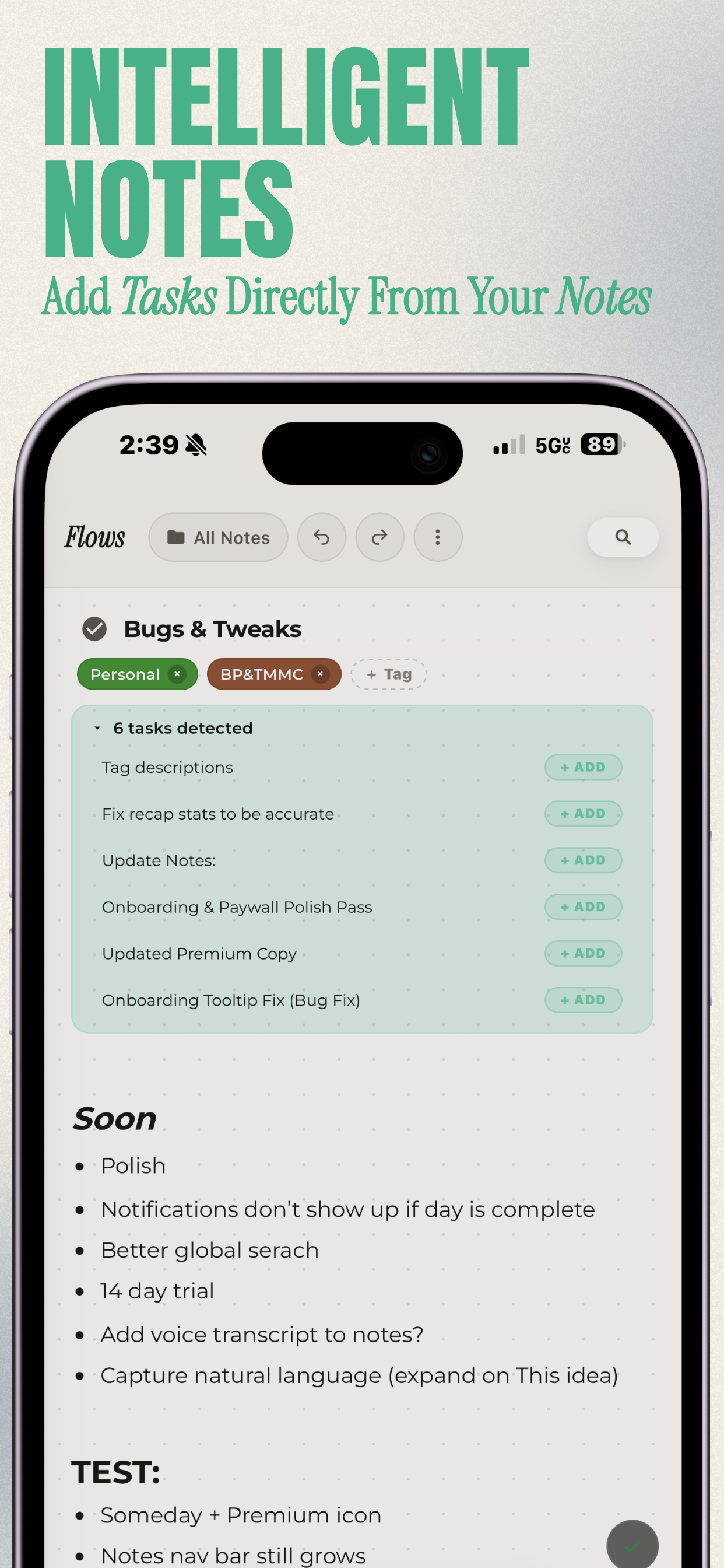
Notes and planner, finally together
Rich notes live right next to your tasks. Highlight any line to turn it into a scheduled task, or paste in an email and Flows splits it into a task with the full text saved as a note. Tasks stay linked to the notes that spawned them with backlinks, so context never gets lost between apps.
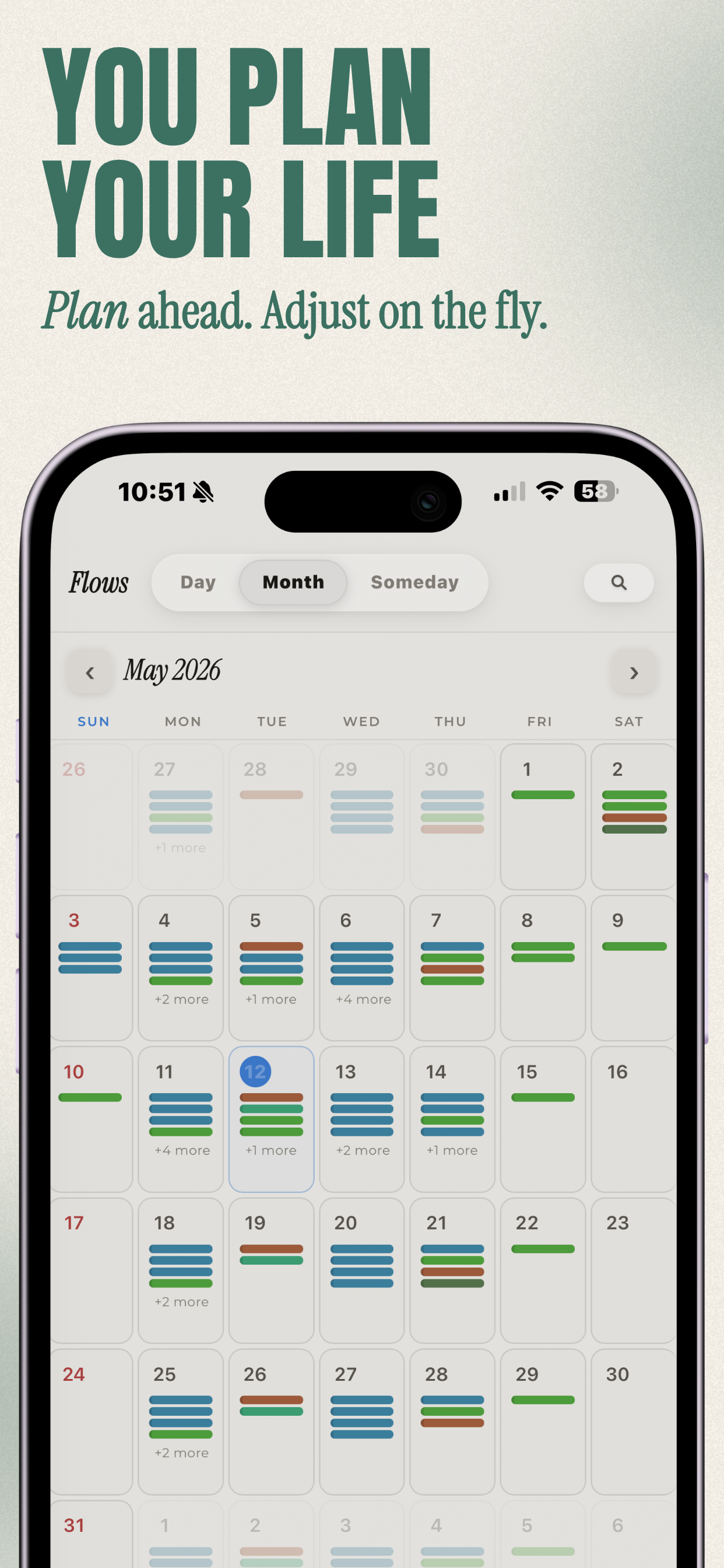
Plan your day in one tap
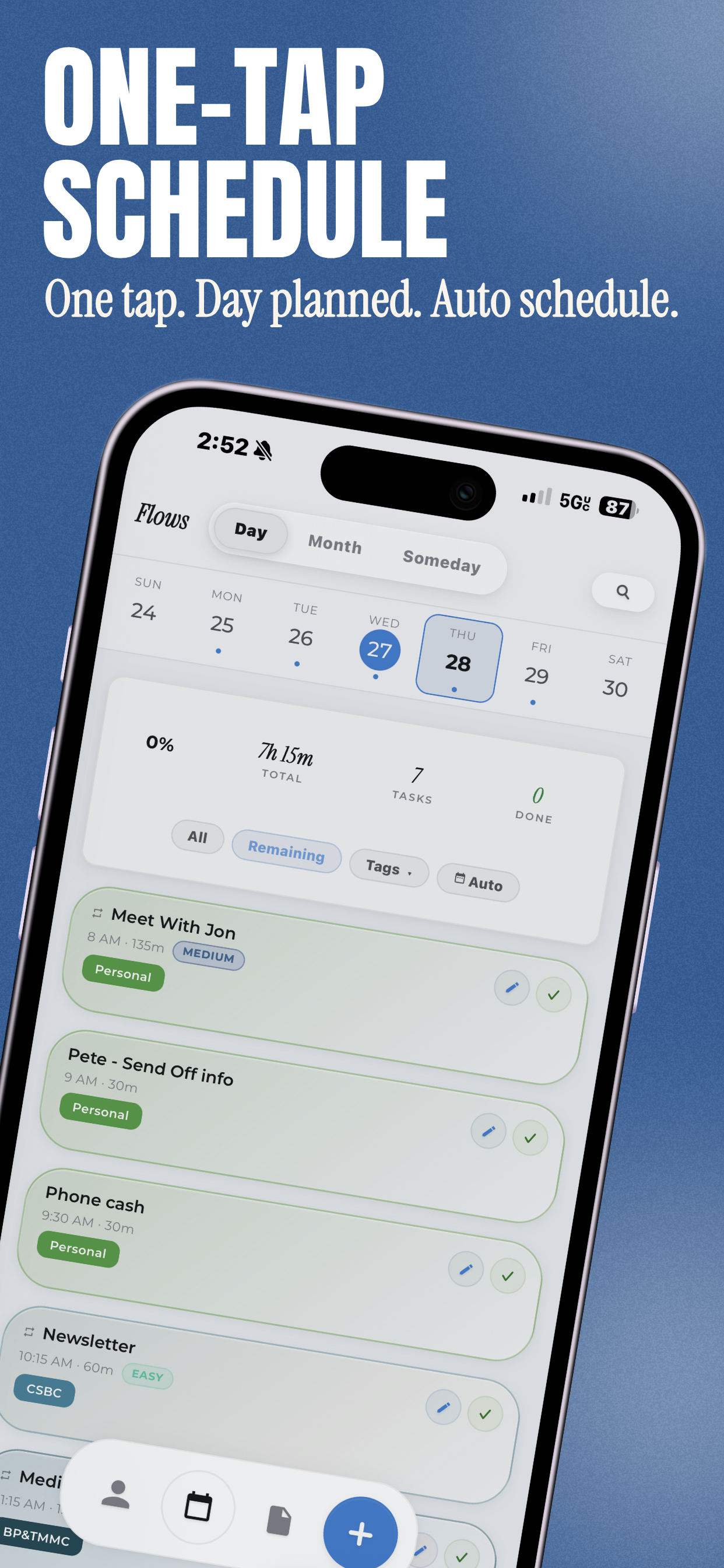
Auto-schedule reads your task difficulty and places hard work when you have the most energy. Choose your week start day, hide weekends, and set your hours — one tap reshuffles everything.
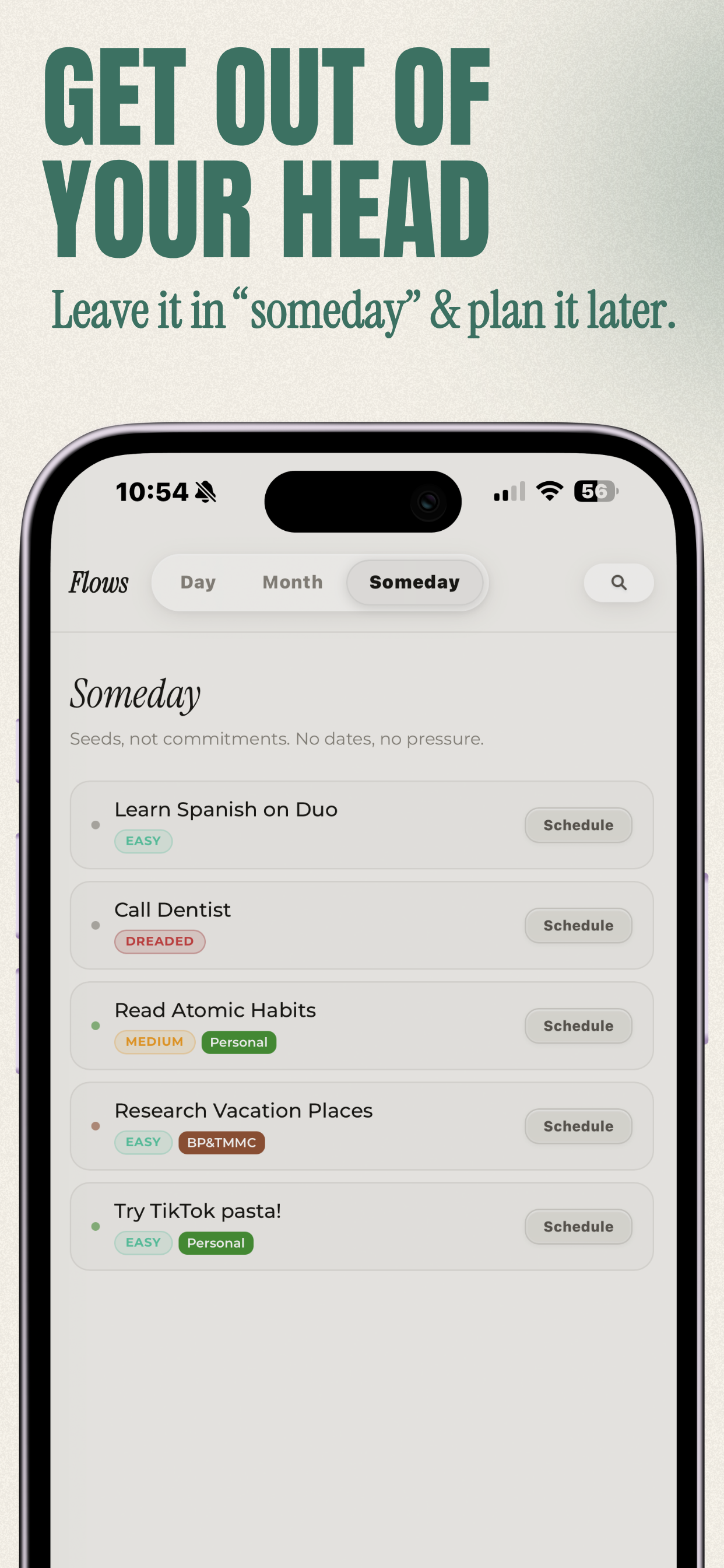
Get ideas out of your head
Your Someday list holds ideas with zero pressure. No due dates, no guilt. When something's ready, promote it to your day. Until then, it waits patiently.
A nudge that matches your mood
Five notification personalities — from gentle encouragement to chaotic screaming. Pick the voice that actually gets you moving when the timer goes off.
See where your time actually goes
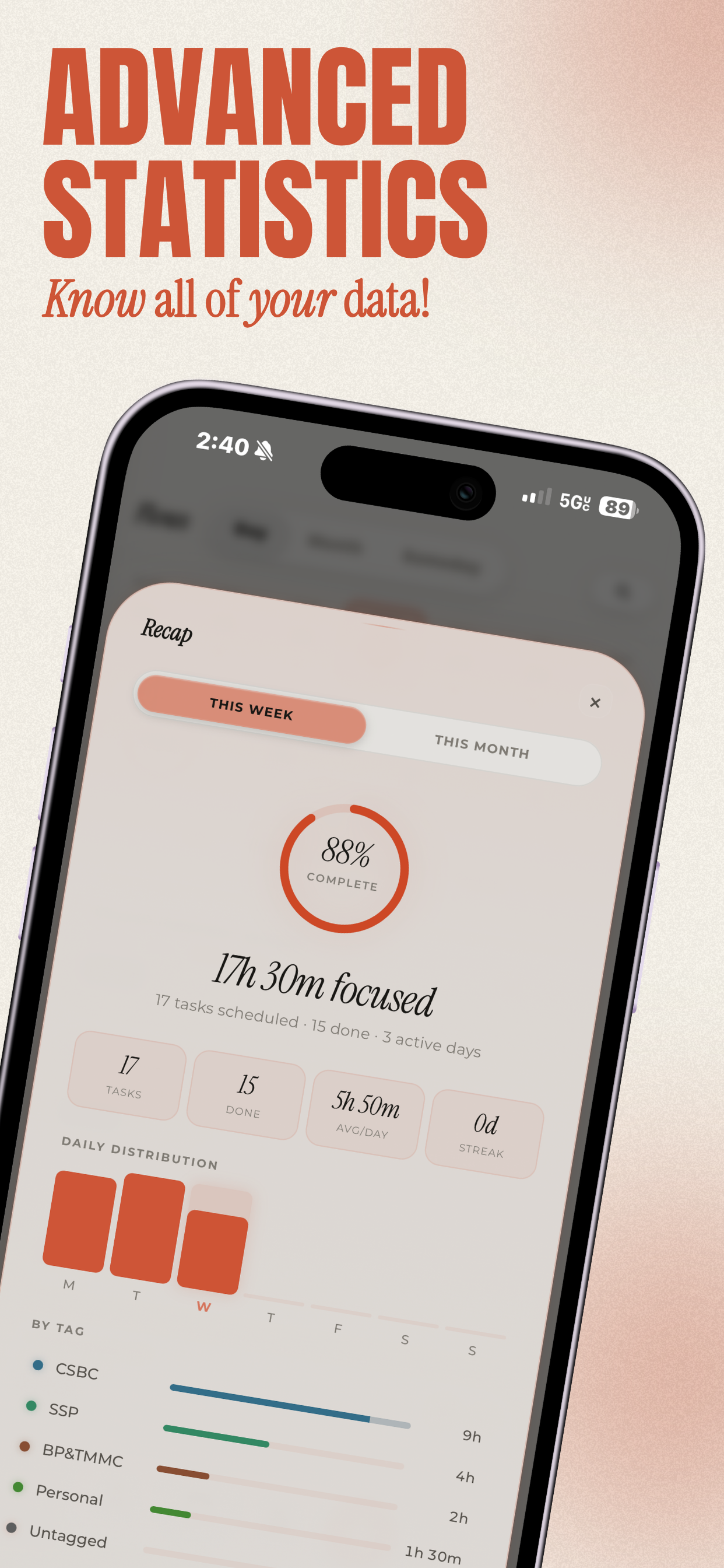
Weekly recaps show time by tag, completion rates, and streaks. Stop guessing why you feel behind — the data tells you exactly what to fix.
Work with your energy, not against it
Tag tasks by difficulty — Easy, Medium, Hard, or Dreaded. Smart auto-tagging learns from your history and suggests tags as you type. Your schedule adapts so you tackle the right work at the right time.
Make it yours
16 handcrafted themes, custom tags, and light or dark mode. Flows looks the way you want it to — because a tool you love is a tool you actually use.
Your day, on your home screen
Home-screen widgets keep Flows one glance away. See your progress ring, today's totals, and what's up next — or add a task or a note in a single tap, without even opening the app.
Notifications that actually
motivate you.
Most apps send boring alerts. Flows sends a nudge from someone who gets you — funny, fierce, or gentle.
Your clearest day starts now.
Download Flows, add your tasks, and tap Auto-Schedule. Your first focused day takes less than a minute to set up. Free to use — Pro trial included.